
Designing effective survey questions takes time, especially when balancing question types, scales, and best practices across different topics. The Survey Wizard (AI) in Leapsome Surveys helps admins build and manage survey questions through a conversational chat interface, directly within the survey editor. By drawing on Leapsome's library of best-practice questions and using your survey's name and description as context, it helps you create well-structured surveys that produce meaningful, benchmarkable insights, faster.
Enabling the Survey Wizard (AI)
Before using the Survey Wizard (AI), make sure it is enabled for the right roles in your organization. To do this, go to Settings > Employees > Feature access matrix > AI features > 'Surveys - wizard to configure' (Use AI to configure surveys (add/edit questions and sections)). From there, you can select which roles should have access.
The Survey Wizard (AI) is most useful when creating a new survey from scratch and looking for relevant question suggestions, or when editing an existing survey and wanting to quickly add, update, or reorganize questions. It is also a great option if you are unsure which question type or scale best fits a specific topic, or if you want to apply Leapsome's best-practice questions to contribute to benchmark data.
How to use the Survey Wizard
Accessing the wizard
To get started, navigate to Leapsome Surveys and either click 'New survey' or open an existing one to edit. Before using the wizard, make sure to fill in the survey name and description, as it uses this context to generate relevant questions. In the question setup step, you will find a collapsible wizard panel on the right side of the survey editor. Click it to expand and start typing your request.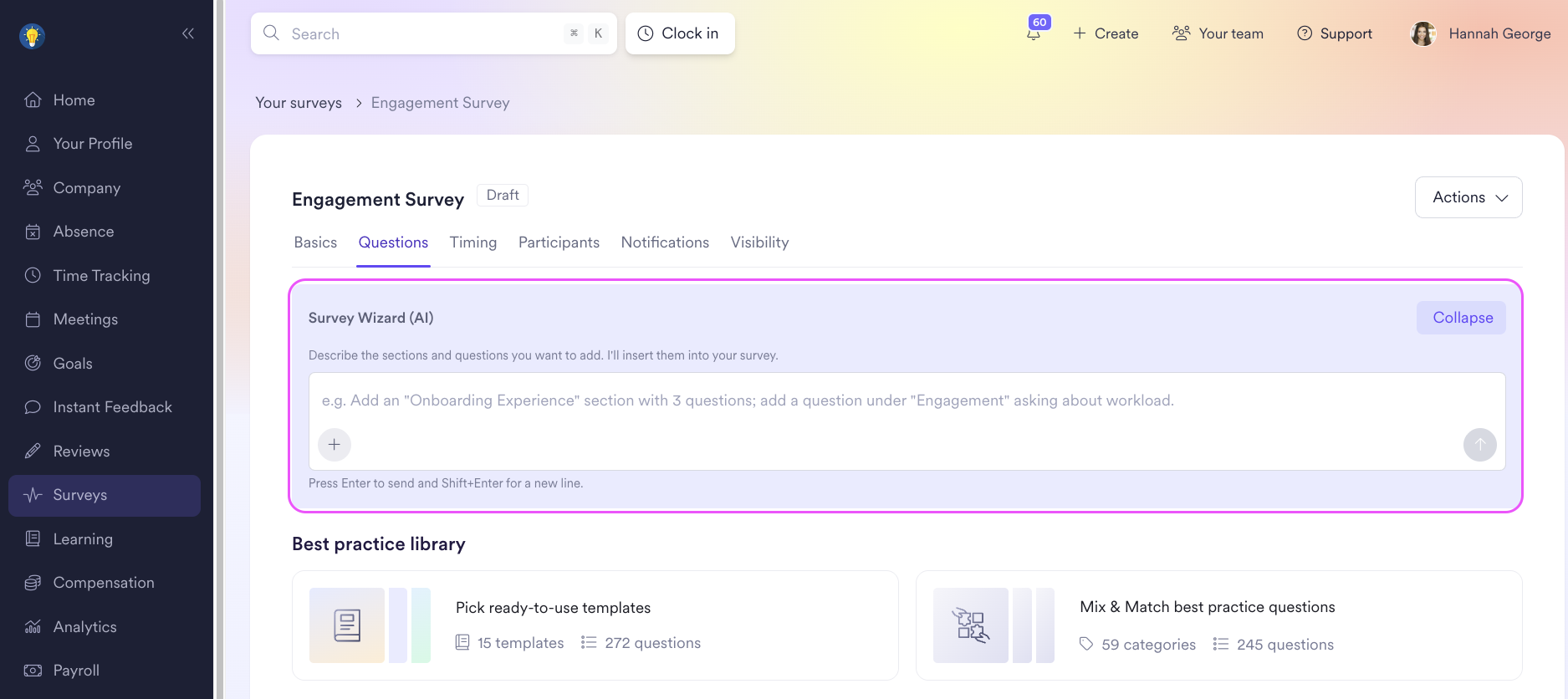
Please note: The Survey Wizard (AI) only becomes available after the survey has been saved as a draft. Make sure to enter a title and save your survey before expecting the panel to appear.
Adding, editing, and deleting questions
You can add, update, or delete questions and sections by typing instructions in plain language, for example, "Add five questions about manager effectiveness" or "Update the third question to use a scale instead of a comment." The wizard handles the changes directly in the survey editor, so there is no need to manually adjust each question afterward.
You can add up to 20 questions per request, and the wizard can only update or delete questions it has generated. Questions you have added manually fall outside its scope.
Adjusting question parameters and moving questions
When adding or editing questions, you can ask the wizard to adjust parameters such as the question type (scale, comment, or multiple-choice) and the scale type (e.g., 0-10, 1-5, or emoji-based). You can also ask it to move questions between sections, for example: "Move the last two questions to the 'Work-Life Balance' section."
AI-suggested questions
The Survey Wizard (AI) prioritizes Leapsome's best-practice question library when generating questions, since best-practice questions contribute to benchmark data. It will only generate fully custom questions if you specifically ask for a custom variation, or if no relevant best-practice question exists for the topic.
AI-suggested questions are labeled with a special AI tag in the survey editor so you can identify them easily. The tag is only visible during your active editor session. Once you save and reopen the survey, it will no longer appear. If you duplicate an AI-suggested question, the tag is removed from the duplicate.